This guide explains the setup of Donna on your demo tenant and guides you through the necessary steps to give a clear demo of Donna’s capabilities.
During a first online enablement session with the Donna team, the Donna team will:
Create a Donna tenant
Connect this Donna tenant to your private SAP Sales & Service Cloud tenant
Once this connection is set-up, you, as Donna admin, are ready to invite your Donna users here.
Download the Donna application on your phone through the app store - click on the direct link below:
Go through the following onboarding steps:
Enter your email address in the application on your phone.
Click on the magic sign-in link in the email you received from Donna ([email protected]) - make sure to do it in the e-mail on your phone!!
Go through the onboarding flow and user settings in the application
Make sure your Outlook is connected to demonstrate the follow-up email and the SAP integration.
How to connect Outlook ?
→ go to app.askdonna.com on your desktop/laptop and login with your email address → click on the magic sign-in link in the email you received from Donna (now via desktop) → on the bottom left, click on your profile picture > preferences and then go to the integrations tab where you can connect with Outlook (drafts)
Settings in SAP Sales & Service Cloud v1 & v2:
1. Create a fictive account: Cbont Industries
2. Create a fictive contact, linked to the above account: Joe Wills
3. Create 2 Appointments /Visit (one appointment for the pre-meeting call and one appointment for the post-meeting call)
Appointment / Visit 1: “First meeting on site”, where you add the below info in the note field**.** (! Make sure this appointment / visit is logged in a window of the latest 7 days, so Donna can easily find it !)
Info to add in the note field (make sure type = Customer information) (copy paste everything)
1. From CRM:
Last week, I met Joe Wills for an initial in-person discussion about upgrading their older Multi Eco 11i pumps.
Key takeaways from that conversation:
Cbont is under increasing pressure to reduce energy consumption while maintaining throughput.
They’ve experienced two unplanned stoppages on Line 2 this year, increasing focus on reliability and predictive maintenance.
I introduced the Multi Eco 33i at a high level, highlighting:
12–18% reduction in oil and energy usage, depending on load
Improved uptime and reliability compared to the 11i
Early commercial indications were shared:
Multi Eco 33i: ~£18,900 per unit
Volume discounts from 3+ units
FlowGuard IoT monitoring: £75/month per pump
Joe showed clear interest in predictive maintenance, especially to prevent future downtime.
No formal quote was shared yet.
We agreed today’s meeting would focus on:
Technical feasibility and installation
Pricing refinement
Aligning on their internal decision-making process
On a personal note, Joe mentioned he had just returned from a hiking weekend in Snowdonia with his kids, which helped create an informal start to the meeting.
2. From public data sources:
To complement what’s in CRM, I pulled in some broader, public context relevant to Cbont’s situation:
Industrial energy efficiency pressure is increasing
According to the International Energy Agency (IEA), electric motor-driven systems account for nearly 70% of industrial electricity consumption, and efficiency upgrades in pumps are one of the fastest ways to reduce energy costs in manufacturing environments.
(Source: IEA — Energy Efficiency in Motor-Driven Systems)
Predictive maintenance adoption is accelerating in manufacturing
McKinsey research shows that predictive maintenance can reduce machine downtime by 30–50% and lower maintenance costs by 10–40%, particularly in continuous production environments.
(Source: McKinsey Global Institute — Predictive Maintenance in Manufacturing)
This external data supports Joe’s focus on both energy savings and avoiding unplanned stoppages, and reinforces the relevance of the Multi Eco 33i combined with FlowGuard monitoring.
3. Stakeholder overview
Joe Wills — Purchasing Manager
Joe leads the evaluation and coordinates internally.
He cares about:
Clear ROI he can defend internally
Supplier reliability
A structured process with minimal friction
Joe is pragmatic and appreciates clear summaries and next steps.
Helen Marbury — Operations Director (final approver)
Helen holds final sign-off authority.
Her priorities are:
Production continuity
Installation risk
Long-term operational stability
She has not been directly involved yet, but Joe has positioned her as the final checkpoint once engineering and finance are aligned.
No colleagues have visited Cbont Industries recently.
BestRun’s technical applications team has delivered similar 33i + FlowGuard implementations in comparable production environments.
You can propose a short technical confirmation call if engineering requests additional reassurance.
Appointment / Visit 2: “Meeting with Joe at Cbont Industries”
Nothing else needs to be added, except the title of the appointment/visit.
Note: never use an ‘internal note’
See also example in this demo video here.
In this demo, you will be role-playing as Mike Summers, Sales Representative at BestRun.
You’re visiting Joe Wills, Purchasing Manager at Cbont Industries, to discuss their interest in our newly launched Multi Eco 33i pump, as a replacement for their existing Multi Eco 11i units.
You will be focusing on 2 scenario’s:
Prepare for the meeting (pre-meeting call)
Debrief after the customer visit (post-meeting call). During this briefing Donna will:
create an opportunity (1), create a follow-up task (2) and draft an e-mail (3)
Note: Donna can also update more SAP Sales & Service Cloud objects like surveys, cases but those are not included in this script.
An example of a demo of SAP + Donna is available here.
During this call, you will call Donna to prepare you for your upcoming meeting. ( = pre-meeting briefing)
You can do this via the phone button at the bottom left, which initiates a spontaneous call. (so DO NOT USE the scheduled appointment)
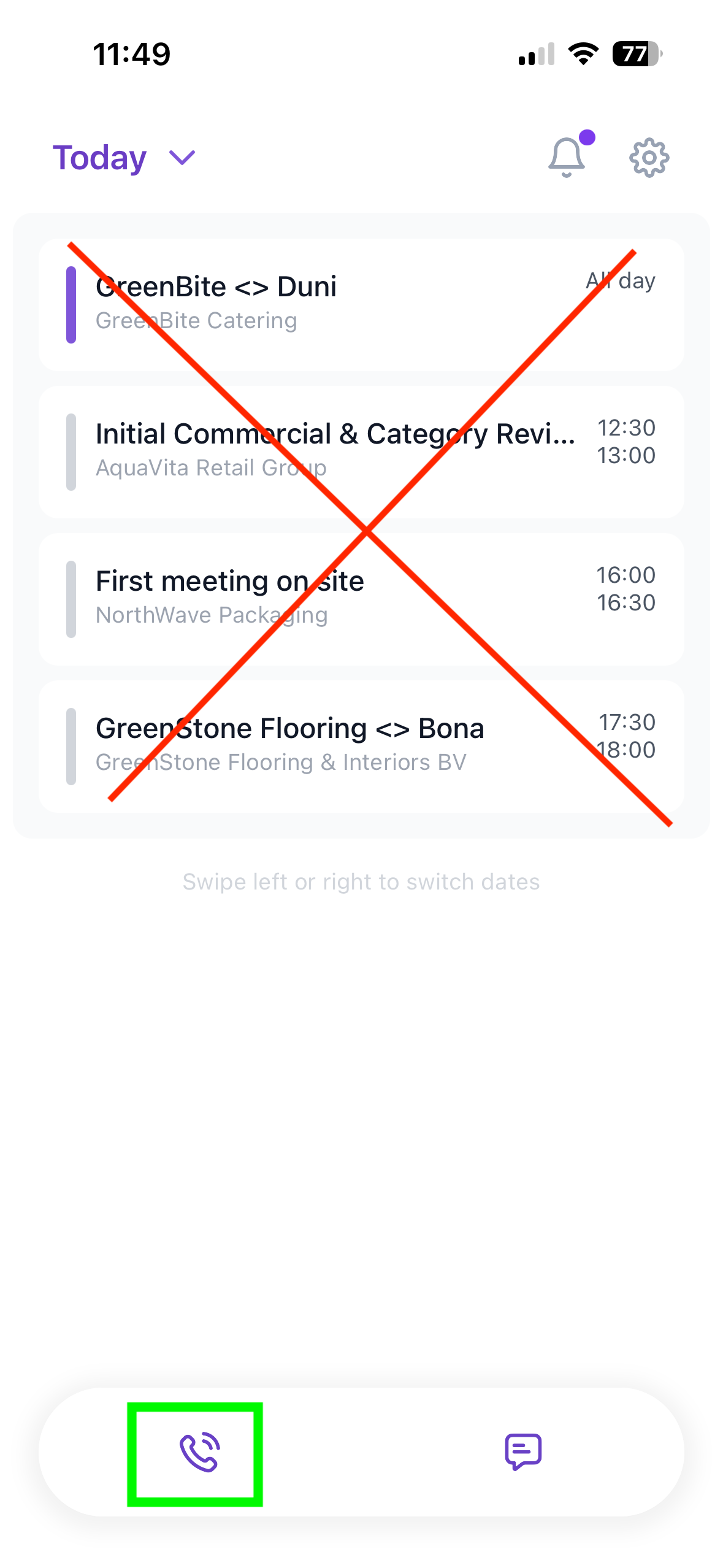
You can then lead the conversation as following:
“Hi Donna, I’m in the car on my way to Cbont Industries where I’m meeting Joe today. To prepare myself for this upcoming meeting, I’d like to know what was discussed last time?”
You can then let Donna recap the previous meeting and when you feel the timing is right to interrupt her, you can ask the following questions as well:
“Is there any additional info from public data that might be useful? Please include the source”
Can you provide some info on the stakeholders I am meeting with & also provide some talking points?”
During this call, you will call Donna to debrief after your finished meeting ( = post-meeting debrief). During this debrief, Donna will create an opportunity (1), create a follow-up task (2) and draft an e-mail (3).
You can do this via the scheduled appointment “Meeting with Joe at Cbont Industries”, so Donna will be directly aware of the right context.
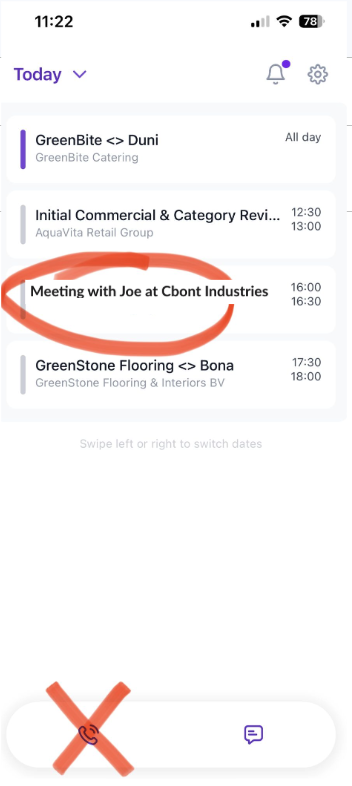
You can then lead the conversation as following:
“Hi Donna, I just finished my meeting here with Joe. Actually it was a really solid session where we built further on everything from last week so I’d like to go ahead and create an opportunity.”
Donna will then know start the “opportunity creation” flow, which will ask you for the following info. (! Important note: you can do this Q&A style, or you can also do a “dump” of all the info where Donna will recognize which info she needs for which question !)
(Donna) Question 1 — What is the decision process for the opportunity?
“Joe explained the decision process clearly. He’s leading the evaluation, but final approval sits with Operations Director Helen Marbury. Engineering will first confirm installation on Lines 1 and 2, and finance will then validate the ROI.”
(Donna) Question 2 — What are the next steps in the sales process?
“I promised Joe I’d send an updated quote tonight, including pricing for two units and FlowGuard on both pumps. They also want annual savings broken out by oil and electricity. After that, Joe will schedule a call with Helen.”
(Donna) Question 3 — What are the selected product categories?
“They’re moving forward with:
Multi Eco 33i — two units
FlowGuard IoT monitoring
The existing Multi Eco 11i will remain as backup only.”
(Donna) Question 4 — Are there any special requests or additional requirements?
“Yes. Engineering wants written confirmation of PLC compatibility, and Joe asked to include installation lead time and warranty extension options in the quote.”
(Donna) Question 5 — What is the amount of the opportunity?
“With FlowGuard included, the opportunity is estimated at €41,000–€43,000.”
After this, Donna will ask you if this is everything. It is important to let her confirm that she created the opportunity.
After that she’ll propose to create a follow-up task, where you can showcase her proactiveness because she’ll propose to create a task eg. to send the quote, so please go ahead and let her do that on a specific date/time.
To end, you can request her to draft a follow-up email which goes as follows: “Hi Donna, can you also draft a follow-up email for me? As a subject you can enter ‘ Next steps & updated quote’ with a professional tone of voice and a clear structure, which makes it easy for Joe to forward this internally. Please include the following in the content:
Short thank-you and recap
Summary of agreed scope
Decision process and next steps
What you’ll send and by when”
Open SAP V4C or Sales Cloud V2 and show how Donna created an opportunity (1), create a follow-up task (2) and draft an e-mail (3).
Donna syncs SAP objects every hour
Within an hour, these meetings will appear in the Donna mobile app
Check the sound & set-up guidelines below for a final check.
You are now demo-ready!
Please follow below Instructions to avoid Echo of Donna's Voice while calling Donna.
On your laptop (Windows/Mac), you connect to the Teams meeting. Don't use headphones or ear plugs, just the mic or audio from your laptop.
On your Phone, also log in into the Teams meeting, but click on "Add another device to meeting" and do this WITHOUT video, WITHOUT audio, WITHOUT mic input (so join without anything on)
Then go to "Share"
Click on "Share Screen "without audio" on iPhone / "Share Screen" with audio disabled (!) on Android.
You can navigate in the app and explain everything.
Then click on one of the call buttons -> Donna calls you -> The screen-sharing will stop. Put the phone on speaker, so that users in the virtual meeting can actually hear Donna talking. (Note that, on your laptop, in Teams (settings), your "noise cancellation" should be off!)
After the phone call is finished, go again to Teams on your phone and share again (like you did before, without audio).
Also, using Quicktime Player can be used for the specific combo of iPhone & Mac users. See a video here on how to do the set-up: