To sign in with Microsoft, go to https://app.askdonna.com and click Sign in with Microsoft. Enter your Microsoft credentials and complete the login process.
Depending on your organization’s Microsoft settings, you may be redirected to a page where you can either grant consent yourself, request admin consent, or where only an administrator is permitted to request and approve consent.
If admin consent is required, you will see a message indicating that approval from your Microsoft administrator is needed. In this case, click Request approval. Your request will be sent to your Microsoft administrator for review. You must wait until the administrator grants consent before you can use Microsoft to login to Donna.
In some organizations, only an administrator can both request and approve consent. If this applies to you, please contact and invite your Microsoft administrator to Donna and ask them to login first.
You will not be able to login with Microsoft until admin approval has been provided.
In some organizations, users are allowed to grant consent individually. If this applies to you, then review the requested permissions. Click Accept to grant consent. Once approved, you will be automatically redirected back to Donna and be logged in to your Donna account.
By default, users can login with Google OAuth, Microsoft OAuth or a password-less magic sign-in link.
Users with the owner or admin role in Donna can enable or disable any of these login methods for their organization’s Donna account.
To disable Google OAuth and the magic sign-in link (thereby allowing only Microsoft OAuth login), go to Settings, Security. On the Security page, disable Login via magic sign-in link and Login via Google, then click Save.
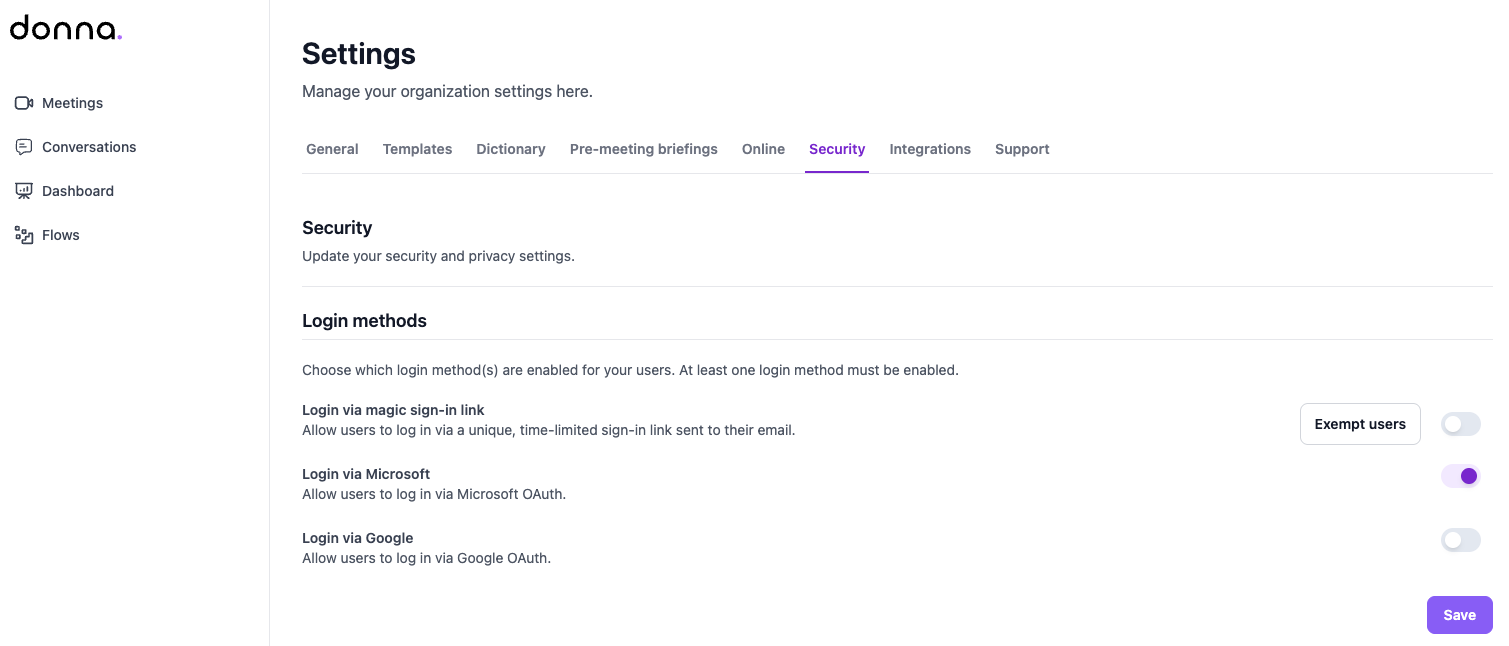
From that point on, Donna users will only be able to log in using Microsoft OAuth.
Logging in to Donna with Microsoft creates a Microsoft Enterprise Application named Donna in Microsoft Entra ID.
This Enterprise Application is used for all Donna Microsoft integrations, including:
Microsoft OAuth login
Outlook Calendar integration
Outlook Mail integration
Microsoft Dynamics integration
The Donna Enterprise Application is automatically created the first time a user logs in to Donna using their Microsoft account or configures a Microsoft integration. It cannot be manually created.
Although there is only one Donna Enterprise Application in Microsoft Entra ID, the permissions granted to it depend on the integrations that are configured. Each integration requests its own specific set of permissions.
The following permissions are required for logging in with Microsoft OAuth:
openid
profile
User.Read
To view the Donna Enterprise Application, a Microsoft administrator can go to https://portal.azure.com, navigate to Microsoft Entra ID, select Enterprise applications, and search for and open the application named Donna.
If no Enterprise Application named Donna is listed, this means that no user in the Microsoft tenant has yet logged in to Donna using Microsoft OAuth or configured a Microsoft integration.
Depending on your Microsoft Entra ID consent and permission settings, users may be able to grant consent themselves or may require administrator approval.
If administrator consent is required, the consent process must first be initiated by a user attempting to log in with Microsoft or configure a Microsoft integration. When this happens, the user will automatically see a screen where they can submit a request for approval. In some organizations, users are not allowed to request administrator consent. In that case, a Microsoft administrator must initiate the consent process.
An administrator can then review and approve the request, which grants the requested permissions for that specific integration at the tenant level.
Administrator consent must be initiated through a login or integration attempt. Permissions cannot be granted in advance without an initial consent request.
Even though there is only one Donna Enterprise Application, Microsoft login and each Microsoft integration requires its own administrator approval the first time it is configured, as login and different integrations may request different permissions. Once administrator consent has been granted for login or a specific integration, subsequent users in the tenant will be able to login and set up that integration without needing to request approval again.
In addition to managing consent and permissions, administrators can also control which users are allowed to sign in to Donna with their Microsoft account and configure Outlook integrations.
To do this, navigate to the Donna Enterprise Application, then go to Manage, Properties. The “Assignment required?” setting determines access. When set to Yes, only users who have been added under Users and groups can sign in to Donna using Microsoft and set up Outlook integrations.